Checkbox Search
This step configures a comparison against either a text, number, boolean or date search column using the DataAssist Search server behavior. This is based on selecting Single checkbox when adding a search comparison in step 2 of the DataAssist Search Wizard: Define your DataAssist Search.
A single database column in either a numeric, bit, text, or date format is searched against. The value of the parameter used to make the comparison is determined by the status of the checkbox: checked or unchecked. You have the option of specifying the values for these two states either statically, or by retrieving the parameter values from a dynamic data source.
The type of comparison made is also configured specific to the state of the checkbox. You can check to see if the value in the database equals a given value, or does not equal a given value, specific to the parameter specified for each state.
This provides flexibility in how you approach using a checkbox search. You can configure the comparison to search using the same parameter for both checkbox states, allowing end user control over whether they want records returned containing that value or not. In contrast, you can also use distinct values for the states of the checkbox, allowing users to choose to return records based on two different value comparisons.
Specify the appropriate database column type for the type of search parameter being used. The results returned depend on whether the selected column in a given record is an exact match of the parameter passed from the checkbox.
Note: The comparisons configured using this wizard are designed for standard implementations. Advanced search configurations can be achieved by either editing the application of the DataAssist Search server behavior applied to your results page by this wizard, or by applying this server behavior directly to your results page.
A single database column in either a numeric, bit, text, or date format is searched against. The value of the parameter used to make the comparison is determined by the status of the checkbox: checked or unchecked. You have the option of specifying the values for these two states either statically, or by retrieving the parameter values from a dynamic data source.
The type of comparison made is also configured specific to the state of the checkbox. You can check to see if the value in the database equals a given value, or does not equal a given value, specific to the parameter specified for each state.
This provides flexibility in how you approach using a checkbox search. You can configure the comparison to search using the same parameter for both checkbox states, allowing end user control over whether they want records returned containing that value or not. In contrast, you can also use distinct values for the states of the checkbox, allowing users to choose to return records based on two different value comparisons.
Specify the appropriate database column type for the type of search parameter being used. The results returned depend on whether the selected column in a given record is an exact match of the parameter passed from the checkbox.
Note: The comparisons configured using this wizard are designed for standard implementations. Advanced search configurations can be achieved by either editing the application of the DataAssist Search server behavior applied to your results page by this wizard, or by applying this server behavior directly to your results page.
Columns
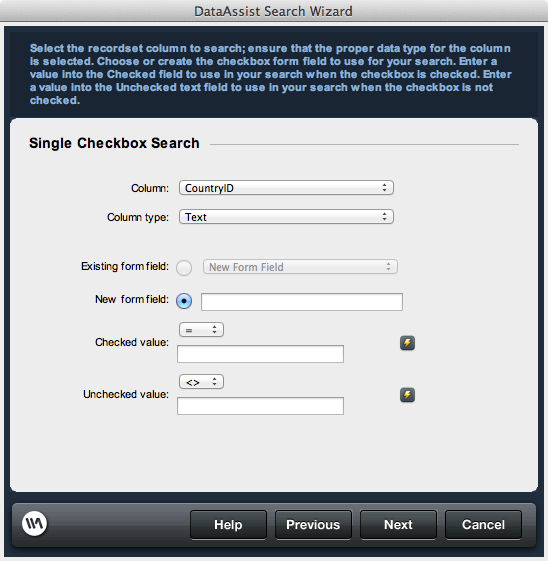
Specify a column type that matches the content of the database column to be searched against. This ensures that comparisons are made correctly based on the expected column format.Column: Select the database column to be searched against.
Column type: Select the column type that matches the type of search parameter to be passed from the form element(s) on the search page. Available options are:
Column type: Select the column type that matches the type of search parameter to be passed from the form element(s) on the search page. Available options are:
- Text
- Number/Boolean: Boolean is true or false value notated as 1 or 0 respectively. Typically captured as a bit field in the database.
- Date
Form fields
Existing form field: If using an existing search page and form, select if you wish to use an existing form element to make the comparison. All form elements contained in the form specified in step 2 of the wizard are available in the list, so be sure the element selected is a checkbox.
New form field: If creating a new form or creating a new search parameter in an existing form, specify the name used to identify the checkbox in the form.
Note: Do not use numbers as the first character when naming a form element.
Checked value: Specify the comparison made against the database column when the checkbox is checked. You can check to see if a specified value exists or does not exist. The value can be specified either statically or using available dynamic data sources.
Unchecked value: Specify the comparison made against the database column when the checkbox is unchecked. You can check to see if a specified value exists or does not exist. The value can be specified either statically or using available dynamic data sources.
New form field: If creating a new form or creating a new search parameter in an existing form, specify the name used to identify the checkbox in the form.
Note: Do not use numbers as the first character when naming a form element.
Checked value: Specify the comparison made against the database column when the checkbox is checked. You can check to see if a specified value exists or does not exist. The value can be specified either statically or using available dynamic data sources.
Unchecked value: Specify the comparison made against the database column when the checkbox is unchecked. You can check to see if a specified value exists or does not exist. The value can be specified either statically or using available dynamic data sources.