DataAssist Search Server Behavior
The DataAssist Search server behavior returns data to the page it is applied to based on comparisons made against a database from a recordset available on the page.
The search is initiated by a trigger on the page. For applications of the server behavior performed by the DataAssist Wizard and the DataAssist Search Wizard, the trigger is typically a form request variable passed from a search form.
Common applications of the server behavior through the aforementioned wizards rely on criteria passed from a search form filled out by the end user. These implementations can be updated directly through the server behavior outside of the wizard as well. This allows you to to customize the application of the search page/results page relationship. If necessary, you may change your search page and comparison configurations through the DataAssist Search Wizard by clicking the Open Wizard button at the bottom of this interface.
As well, the server behavior can be applied directly to a page to perform query functions specific to your search needs. Dynamic data bindings for values that trigger the search, as well as for supplying comparison criteria against specified database columns, make this server behavior flexible for advanced query implementations.
It is recommended that if you create a search page and form using the DataAssist Search server behavior directly instead of the wizard, your search page is configured with all necessary form elements so they are accessible through the bindings interfaces during the configuration process.
The following details all of the criteria required to appropriately configure a given comparison.
The search is initiated by a trigger on the page. For applications of the server behavior performed by the DataAssist Wizard and the DataAssist Search Wizard, the trigger is typically a form request variable passed from a search form.
Common applications of the server behavior through the aforementioned wizards rely on criteria passed from a search form filled out by the end user. These implementations can be updated directly through the server behavior outside of the wizard as well. This allows you to to customize the application of the search page/results page relationship. If necessary, you may change your search page and comparison configurations through the DataAssist Search Wizard by clicking the Open Wizard button at the bottom of this interface.
As well, the server behavior can be applied directly to a page to perform query functions specific to your search needs. Dynamic data bindings for values that trigger the search, as well as for supplying comparison criteria against specified database columns, make this server behavior flexible for advanced query implementations.
It is recommended that if you create a search page and form using the DataAssist Search server behavior directly instead of the wizard, your search page is configured with all necessary form elements so they are accessible through the bindings interfaces during the configuration process.
Access
The DataAssist Search server behavior is accessible in the following location:- Server Behaviors panel > Plus icon (+) > WebAssist > DataAssist > DataAssist Search
Server Behavior Configuration
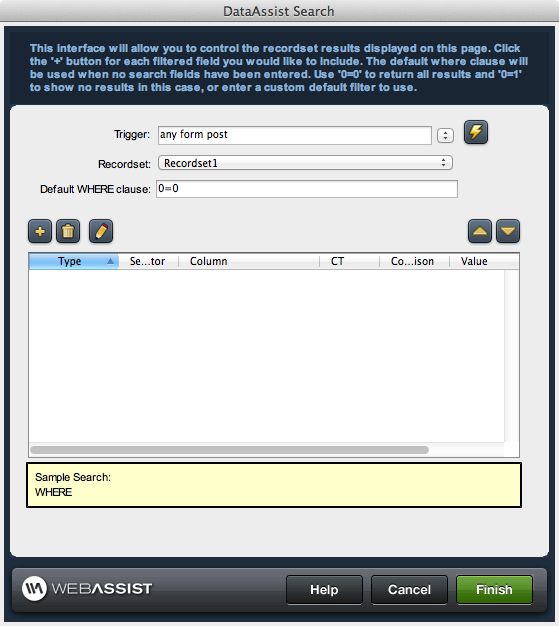
Specify the high level configuration options that determine the datasource, the event initiating the query, and the default parameters to use on the page if the page is accessed directly, or from a location that is not passing it the appropriate search parameters.Trigger: Refers to a request, session variable, or other dynamic data event. The existence of a value for the specified variable triggers the query on a given page. A request object (such as a hidden form element) or a session variable must be submitted or passed to the page that has the server behavior applied to it in order for the query to execute. Available triggers are:
Recordset: the recordset on the page used to query the database. Select from all recordsets currently applied to the page.
Default WHERE clause: The default where clause used if the session variable is not set and the user has accessed the current page without passing the appropriate trigger to run the server behavior. Here are some examples for returning all or no records:
To default to no records displayed:
WHERE 0 <> 0
To default to all records displayed:
WHERE 0 = 0
- Any Form Post: Any form posted to the current page that the server behavior is applied to will trigger the data retrieval.
- Before Page Load: The data retrieval is triggered when the current page that the server behavior is applied to is loaded.
- On Form Submit: Any form submitted on the same page that the server behavior is applied to will trigger the data retrieval.
- Button [button name] pressed: The server behavior is triggered if the specified button on the page is clicked.
- Dynamic Data: Server-side code can be specified in the dynamic data interface (accessed through the lightning bolt) to create a trigger specific to your needs if one in the list does not meet your requirements.
Recordset: the recordset on the page used to query the database. Select from all recordsets currently applied to the page.
Default WHERE clause: The default where clause used if the session variable is not set and the user has accessed the current page without passing the appropriate trigger to run the server behavior. Here are some examples for returning all or no records:
To default to no records displayed:
WHERE 0 <> 0
To default to all records displayed:
WHERE 0 = 0
Search Parameter control
Configure individual comparisons based on a value passed to the page from a specified location. Each comparison is listed and managed in this control. : Comparisons are added by clicking the Add (+) button. This initiates a the configuration user interface for a new comparison to be added to the list (see Configure a Search Parameter below).
 : Comparisons are removed by selecting an existing comparison and clicking the Delete button.
 : The Edit button triggers the edit process for an existing comparison that is selected in the list (see Configure a Search Parameter below).
 : Statements are ordered by selecting them in the list and using the up and down arrows to change their relative position.
Sample Search
Based on the comparison specified, an example of the resulting WHERE clause used to make the database query on the page is displayed for reference.Configure a Search Parameter
Clicking the Add (+) button above the Search parameter control pane initiates the advanced configuration interface available to define specific comparison types for your query.The following details all of the criteria required to appropriately configure a given comparison.
General parameter configuration
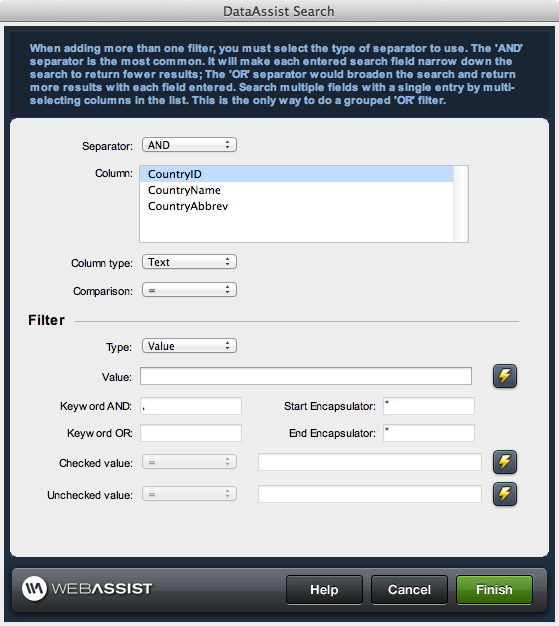
Each comparison is comprised of the four following high level attributes:Separator: compares multiple entry types for queries and provides filtering for records based on their entry type: "AND", "OR", "AND NOT", and "OR NOT". You will notice the first entry you make does not use a separator as it has nothing to compare to.
Column: selects the recordset column that the Entry Value will be compared to. Multiple columns selections are available only for Keyword entry values.
Column Type: Select the column type that matches the type of search parameter to be passed to the page. The server behavior attempts to identify it for you. Always check to ensure that it is correct before adding the comparison to the list of comparisons. Available options are:
Column: selects the recordset column that the Entry Value will be compared to. Multiple columns selections are available only for Keyword entry values.
Column Type: Select the column type that matches the type of search parameter to be passed to the page. The server behavior attempts to identify it for you. Always check to ensure that it is correct before adding the comparison to the list of comparisons. Available options are:
- Text
- Number/Boolean: Boolean is true or false value notated as 1 or 0 respectively. Typically captured as a bit field in the database.
- Date
- Equals | Does not Equal: used to compare values through exact comparisons
- Greater than | Less Than | Greater than or equal to | Less than or equal to: used for comparison against numerical and date database columns
- Includes | Begins With | Ends With: Used to find exact values anywhere within a value from the database using wildcards. For Keyword filters:
- Includes: looks for specified text anywhere within a database field value.
- Begins With: returns results that have specified text only at the beginning of the value in the database.
- Ends With: returns results that have specified text only at the end of the value in the database.
- Is | Is NOT: used to check whether a value exists for the specified column.
- Is: checks to make sure that a value exists in the column.
- Is NOT: looks for a null value in the specified column
Filter
This section configures the attributes of the type of comparison you want to perform. Depending on the type of attribute selected, some options may be disabled if not applicable.Type: Refers to the type of comparison you would like to perform:
Note: When using date columns with the "less than or equal to" or the "greater than" comparisons unexpected results may occur. Please refer to the Date Evaluation information in the Advanced configuration section.
Keyword AND: sets the character accepted as a separator within a search field for AND comparisons
e.g. for a comma: apples, oranges equates to apples AND oranges
Keyword OR: Sets the character accepted as a separator within a search field for OR comparisons
e.g. for a comma: apples, oranges equates to apples OR oranges
Start Encapsulator and End Encapsulator: Sets the characters that are accepted by the textfield that can be entered by the end user to encompass a string for comparison against search criteria, forcing the requirement that the entire string be matched.
- Value: Value entries are for comparing to constant values or server-side variables. Value comparisons allow for direct entry of server-side code to retrieve the value dynamically on the server.
- Edit: Edit comparisons are used to get values from edit boxes on the search page. These can be type text, check, radio button, button, etc...
- List: List comparisons are reserved for dropdown and multi-select lists on the search page.
- Check: This comparison presents you with two extra options, Checked value and Unchecked value, for which specific comparisons need to be configured for each. These refer to the actual strings you want to compare the column to if the checkbox is checked or unchecked respectively
Note: There are issues in PHP regarding unchecked values; please refer to Advanced configuration for more info. - Keyword: This comparison also presents you with two extra options. It is used for edit boxes where users can do keyword searches. The two extra options, Implied And and Implied Or, refer to what the user will enter for AND and OR in the keyword field. The defaults are " , " and " " respectively.
e.g. Entering "Fruit, Apple Vegetable" returns records for columns with both "Fruit" and "Apple" or just "Vegetable"
Note: When using date columns with the "less than or equal to" or the "greater than" comparisons unexpected results may occur. Please refer to the Date Evaluation information in the Advanced configuration section.
Keyword AND: sets the character accepted as a separator within a search field for AND comparisons
e.g. for a comma: apples, oranges equates to apples AND oranges
Keyword OR: Sets the character accepted as a separator within a search field for OR comparisons
e.g. for a comma: apples, oranges equates to apples OR oranges
Start Encapsulator and End Encapsulator: Sets the characters that are accepted by the textfield that can be entered by the end user to encompass a string for comparison against search criteria, forcing the requirement that the entire string be matched.